A step-by-step guide to checking for Python and installing Python on Windows, macOS, and Linux.
ProgrammingBeginnerUpdated June 2026
Disclaimer & Important Cautions
These Tech Guides and instructions are provided in good faith as a general educational guide. Technology changes over time, and settings, software versions, installation steps, and security practices may vary by system.
I cannot guarantee that these steps will work in every environment, and I am not responsible for data loss, configuration problems, system errors, security issues, downtime, or other problems that may result from following this guide.
Back up important files before making system or software changes.
Document your current settings before changing them.
Use administrator privileges carefully.
Do not perform these steps on a production system unless you understand the risks.
Use official Python downloads and package manager commands when possible.
When in doubt, consult official documentation or a qualified technician.
First Check if Python is Installed
In order to write Python programs on your computer you need to have Python and its tools installed on your computer. Python might already be installed on your computer, some computer manufacturers include Python in the default software they install on your computer. Before installing Python, it's best to check your computer first to see if the installation is actually needed. The most common approach to checking for Python on your computer is at the command line, called Command Prompt on Windows computers and Terminal on Mac and Linux computers.
First, open your command line window:
Windows: Press Ctrl Alt T
Mac: Press Command Space, type Terminal and press Enter
Linux: Press Ctrl Alt T
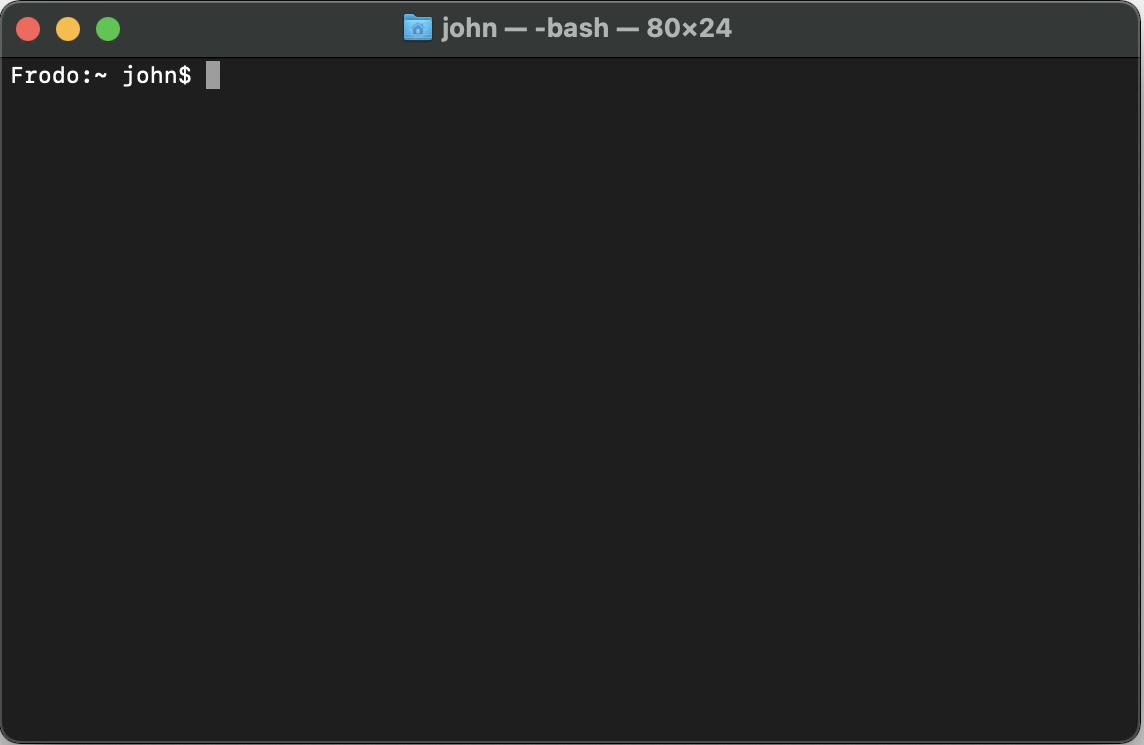
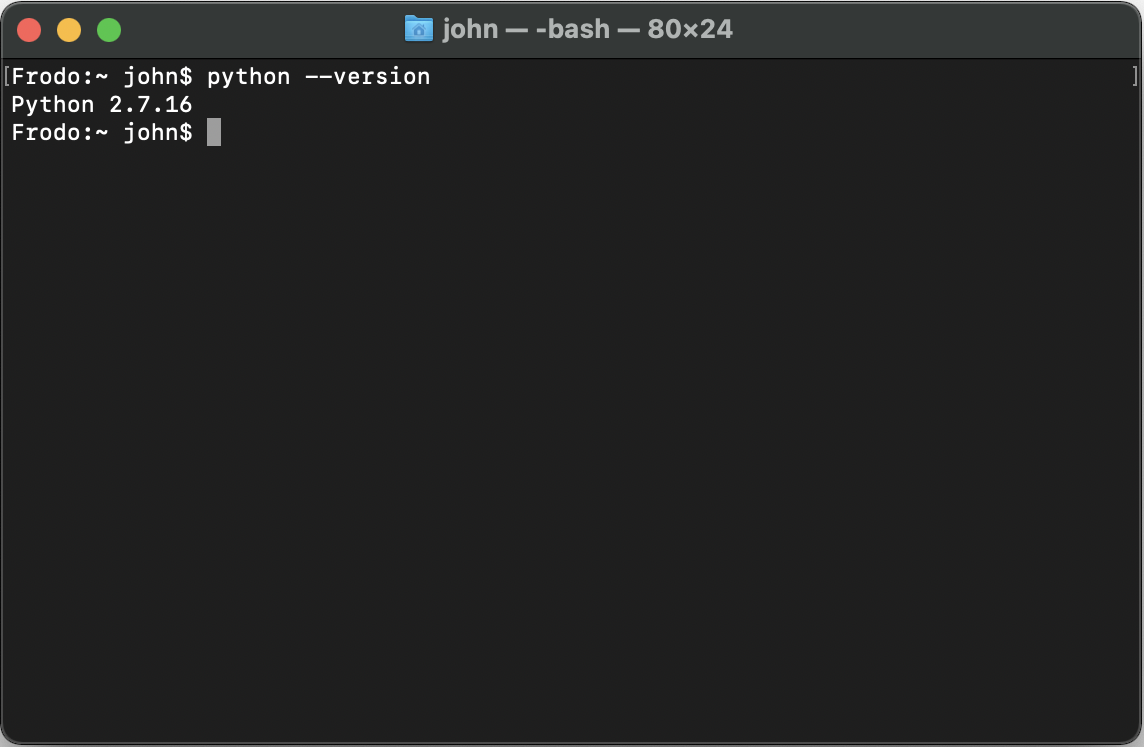
Next, at the prompt, type python --version and press Enter. Example on a Mac:
If Python is installed, you'll see "Python" followed by a version number. In the screen capture example above, it displays Python 3.11.4, which means Python is installed on that computer. In this case, I do not need to install Python.
On the other hand, if the python --version command responds with a message indicating that Python cannot be found, then you'll need to install Python. To do so, follow the instructions below.
Install Python if Needed
For instructions to install Python on your computer, select your operating system tab below for OS-specific instructions:
Choose your operating system
Windows Installation Instructions
1. Open Windows Control Panel - Programs & Features. Using the keyboard, press Windows + R, then type appwiz.cpl in the Run box. Or use the GUI to open Control Panel and select Programs and Features.
×
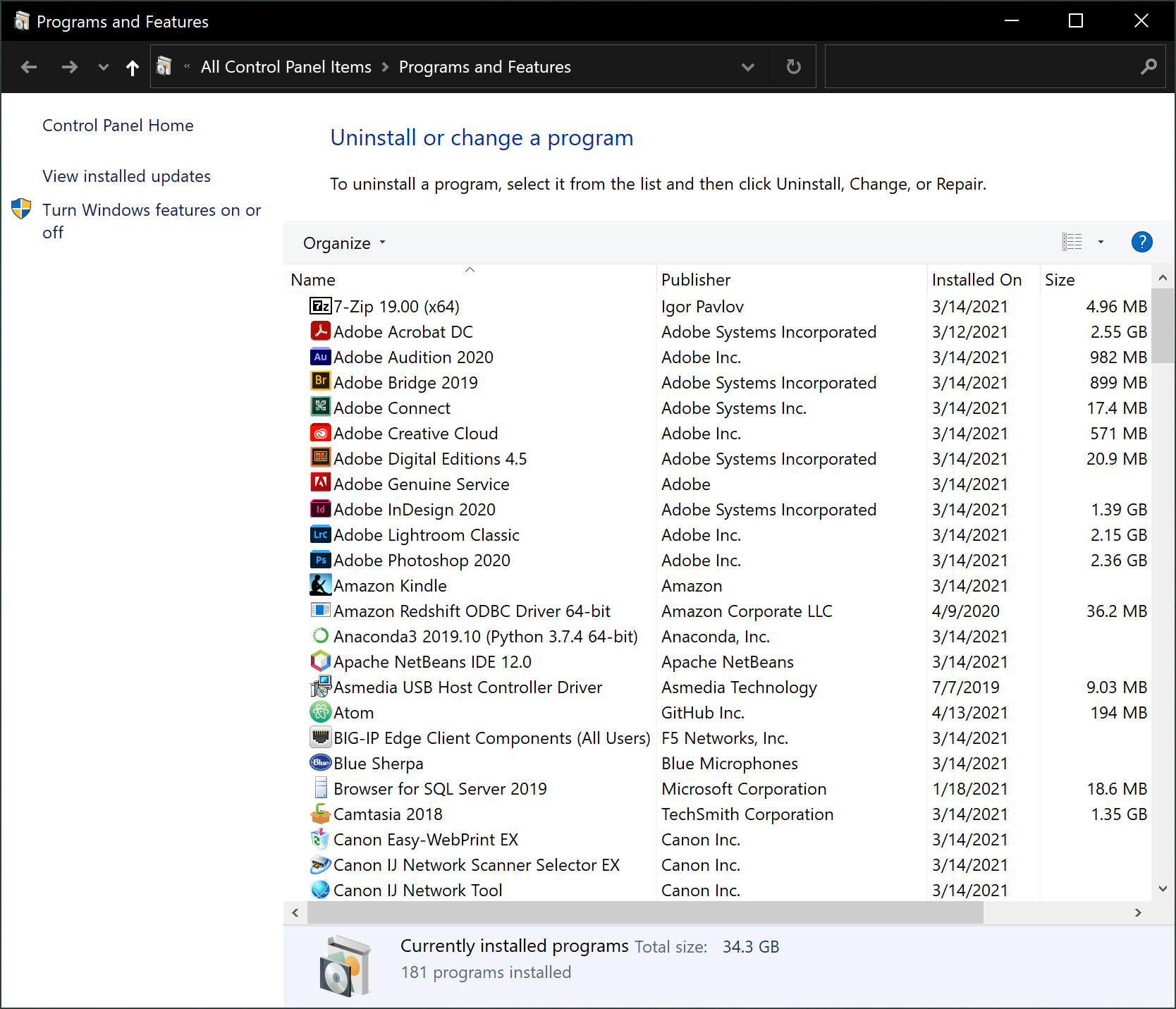
2. The list of programs is alphabetical, so scroll down to 'P' to see if any versions of Python are installed:
×
Notice in my case I have Python 3.8 already installed. This would work for our purposes, but I'll upgrade to the latest version, which as of the time of this writing is 3.9.
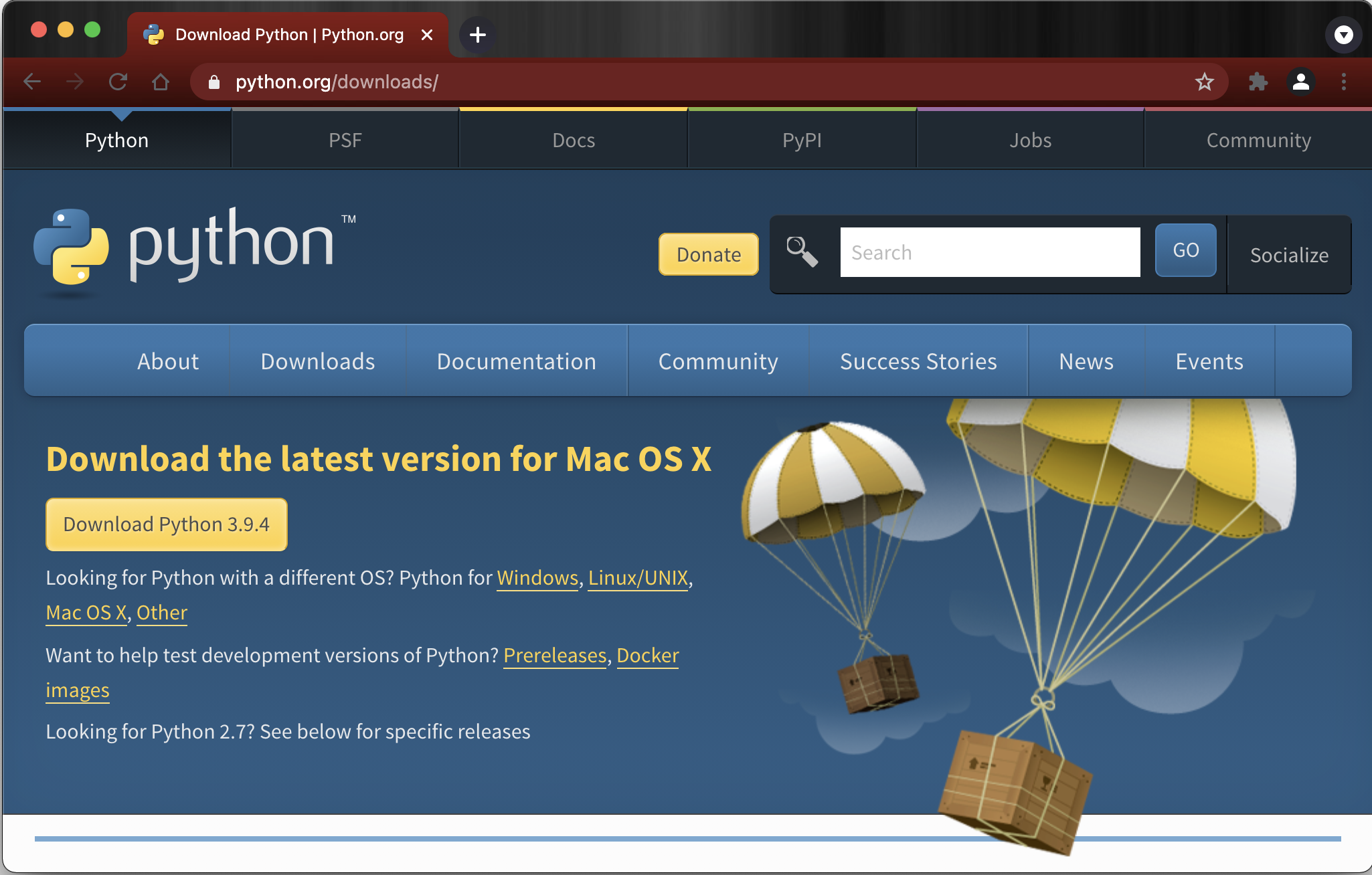
3. Now I'll open a browser and go to the Python.org Downloads page where I can download Python:
×
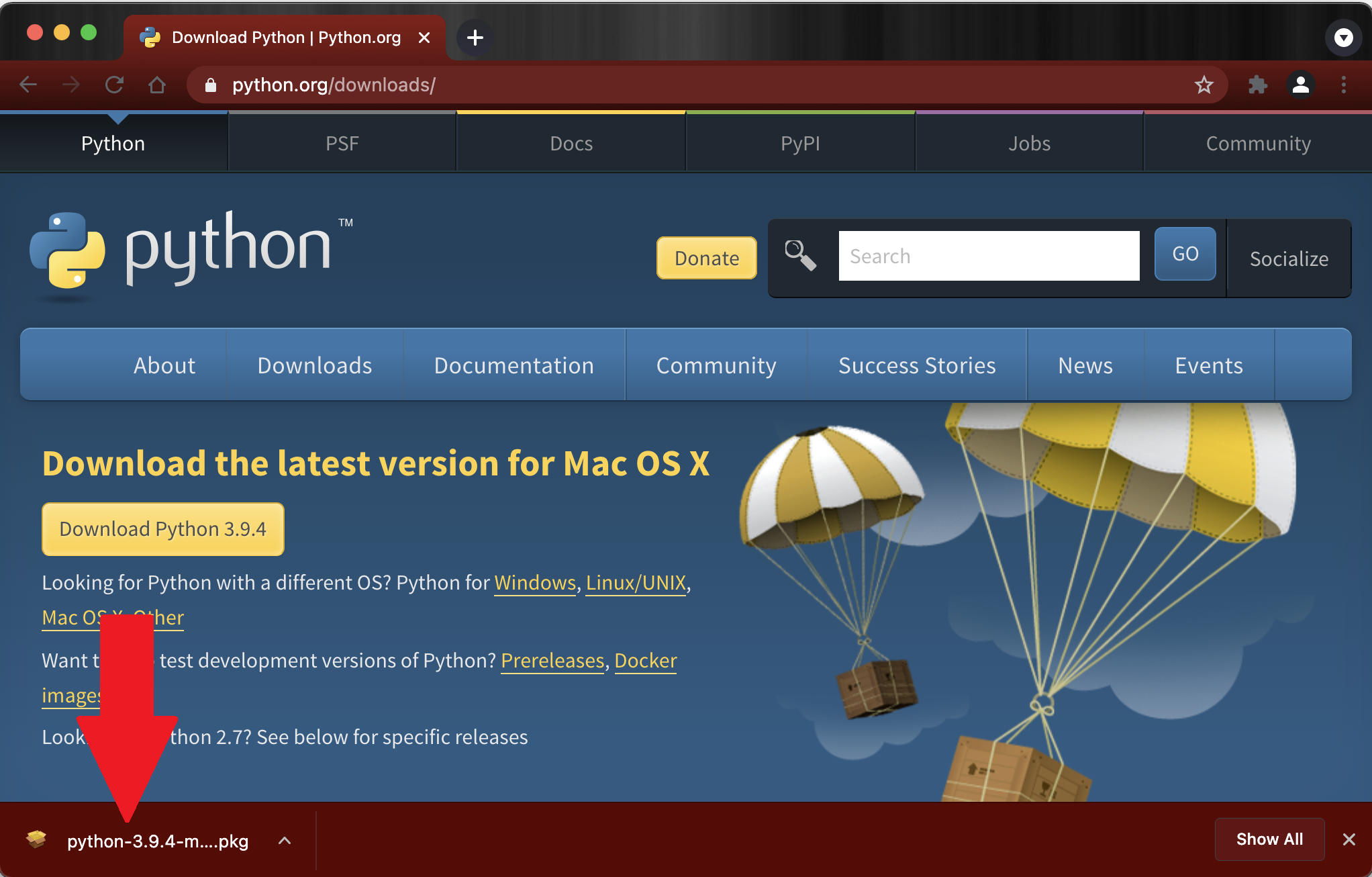
Usually, the web page detects your operating system and automatically sets the Download button (large yellow button center left of the screen shot). So, now I can click the Download Python 3.9.## button. The download should be quick, and then appear at the bottom of your browser (if you're using Chrome), or you can find it in your Downloads folder.
×
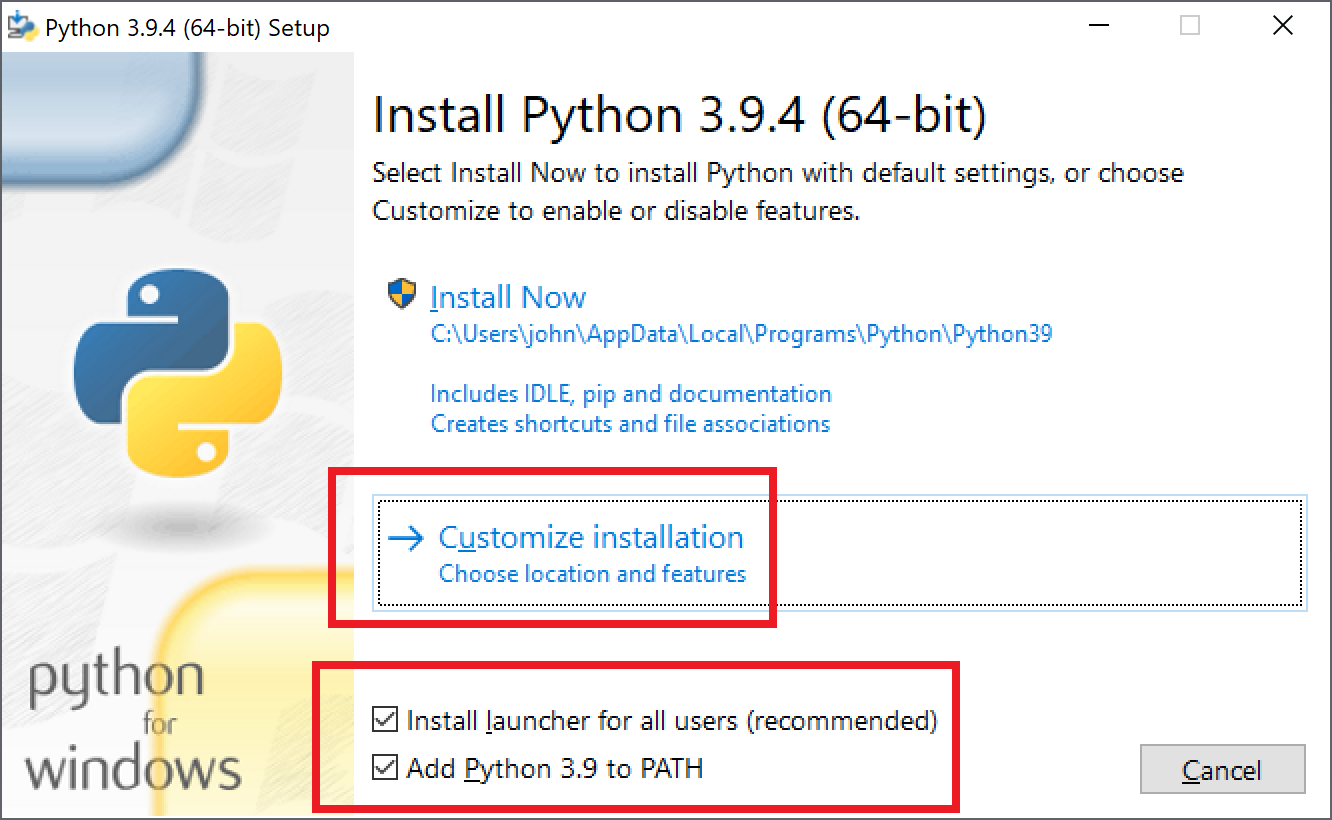
4. Next, run the downloaded installer. You can click the Downloaded Install File button at the bottom left of the browser window (as shown in the screenshot above). Or open your Download folders in Windows Explore and double-click the installer file there. The Python installer will then open:
×
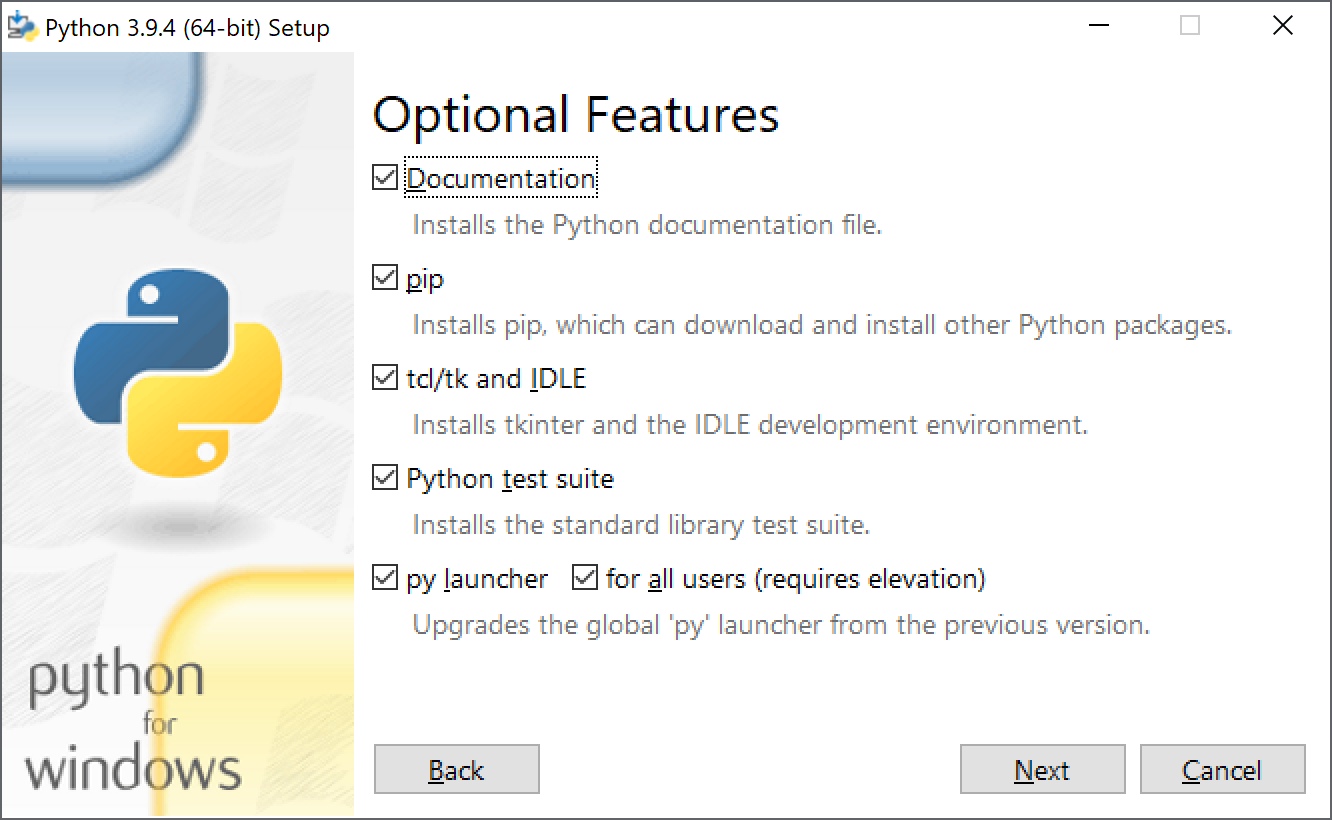
Be sure the two checkboxes at the bottom of the installer window are checked, and then click Customize Installation. The install screen then displays a set of Optional Features. Be sure all of the features are checked, and click Next.
×
Next a set of Advanced Features appears, be sure to check the Install for All Users box, as well as the other default checkboxes, and then Install.
×
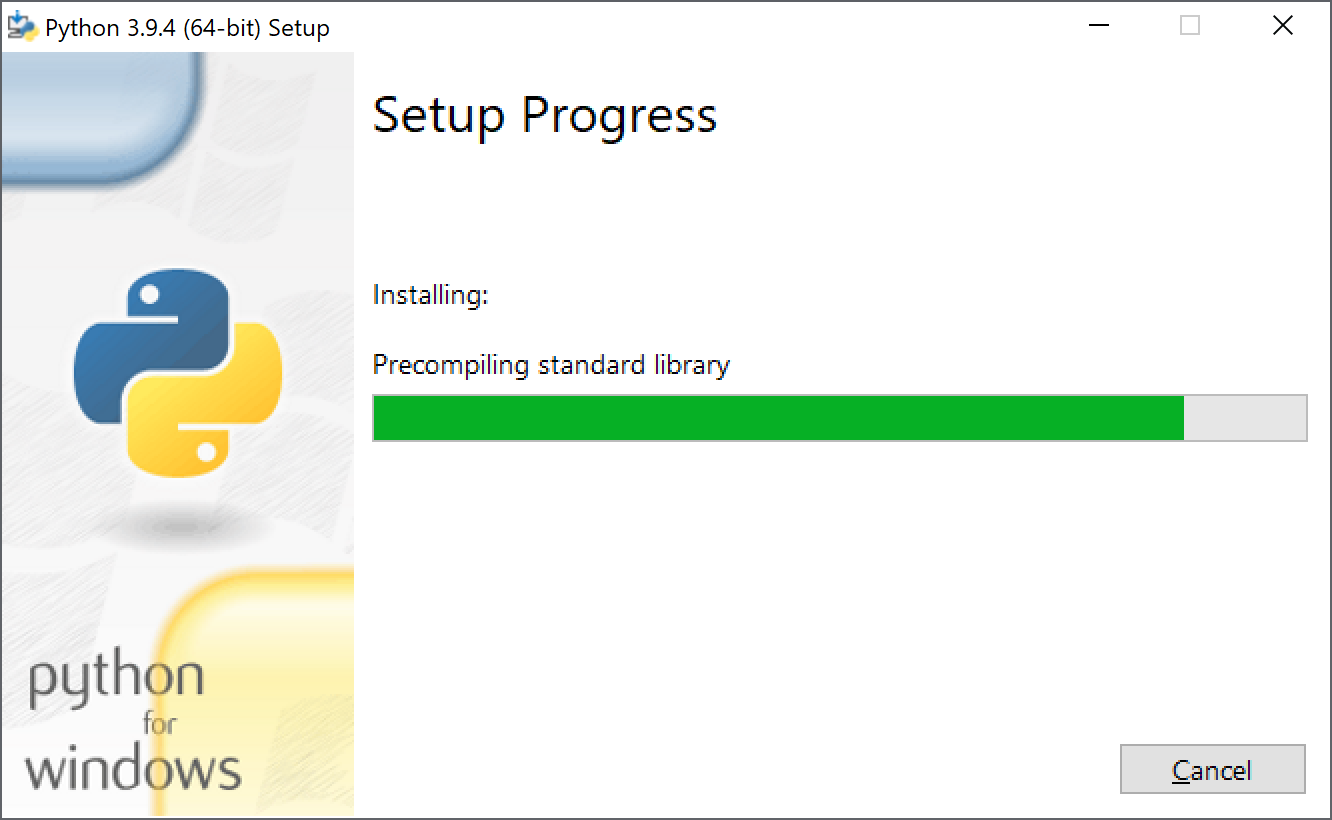
The installation process will run ...
×
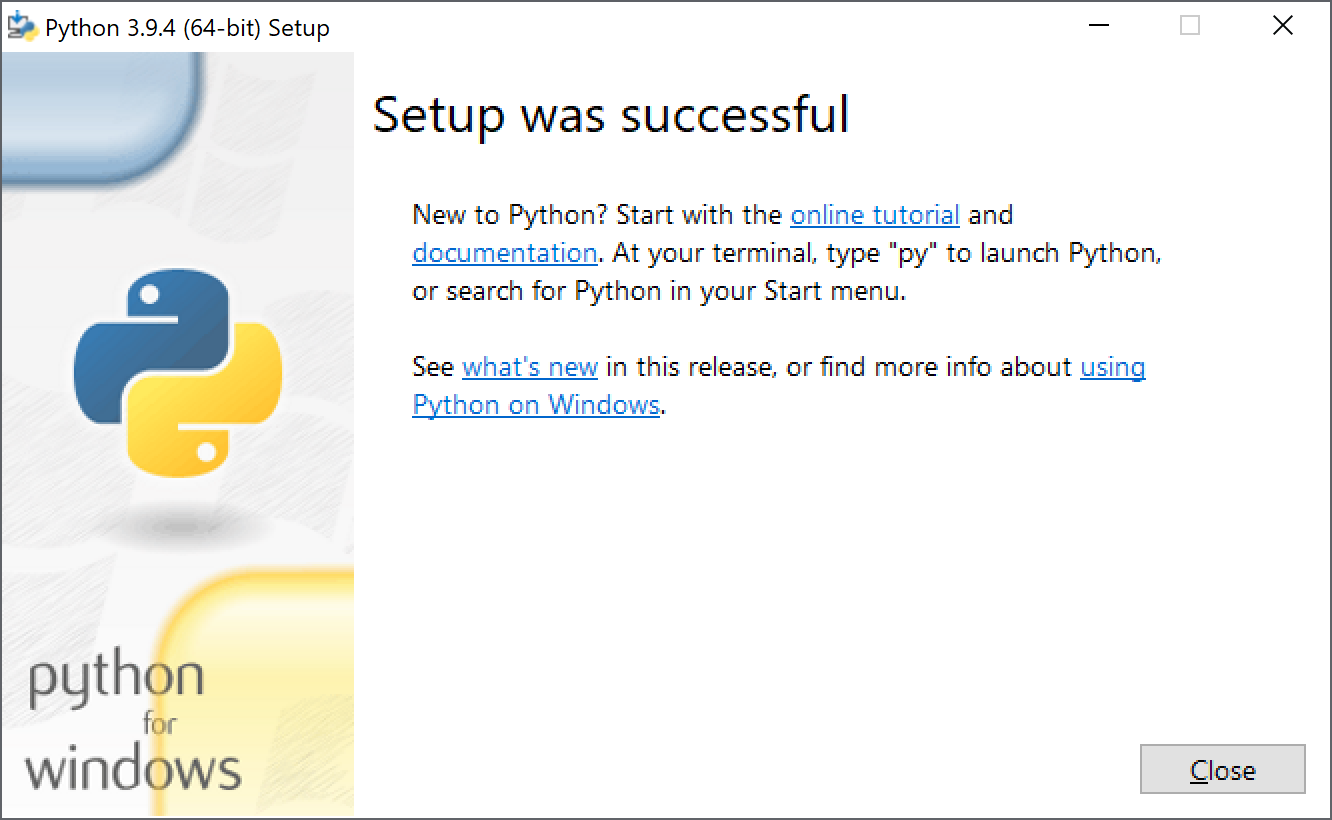
When the installation finishes, the last install screen provides information and links to training and documentation. These resources are useful but optional. If you click any of the links, the associated pages will open in your browser.
×
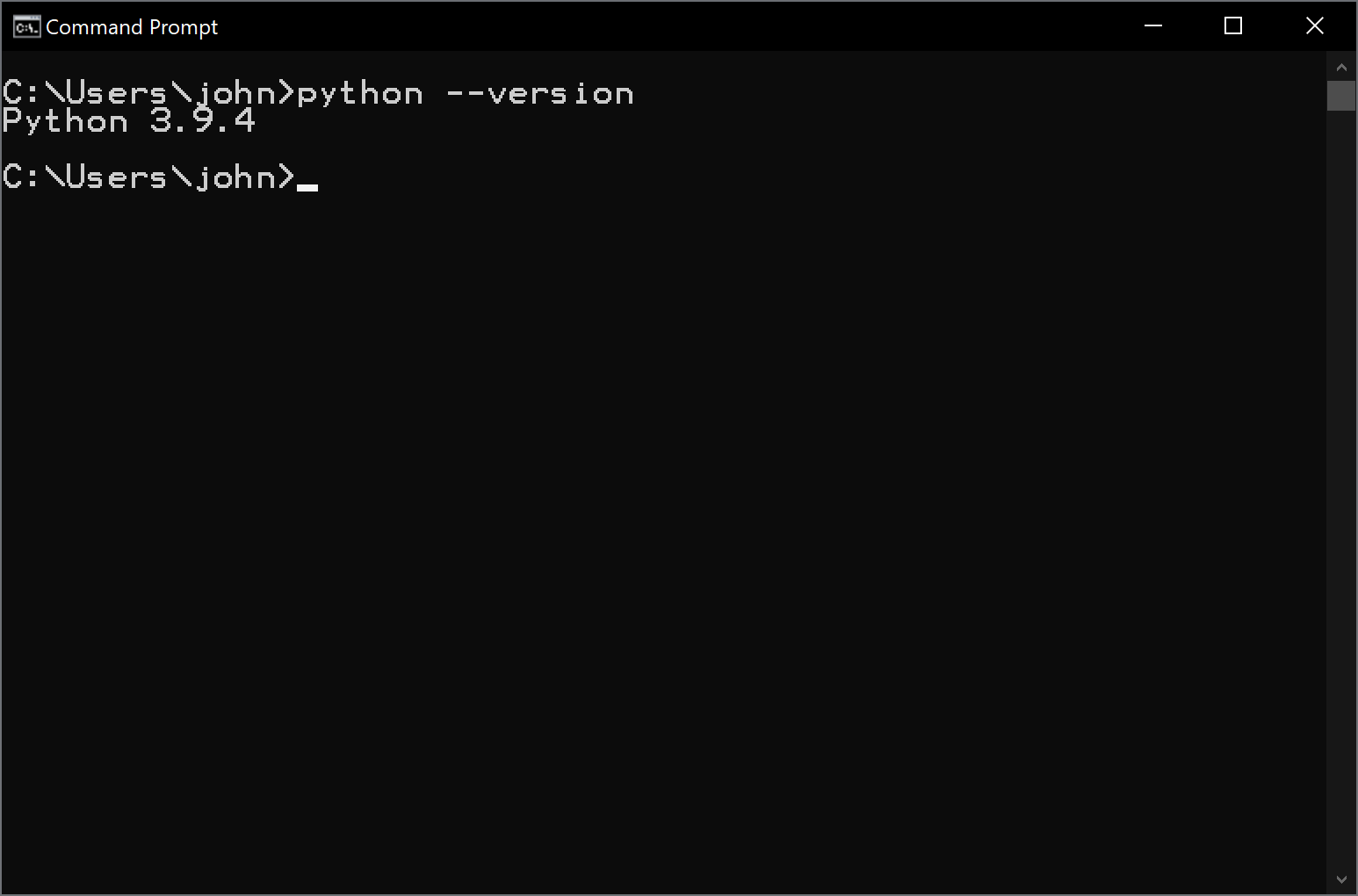
To confirm the installation, you can open a Command Window (press Windows + R, type in cmd, and press Enter). Then enter the following and press Enter:
python --version
×
Notice that the version reported in my example is Python 3.9.4.
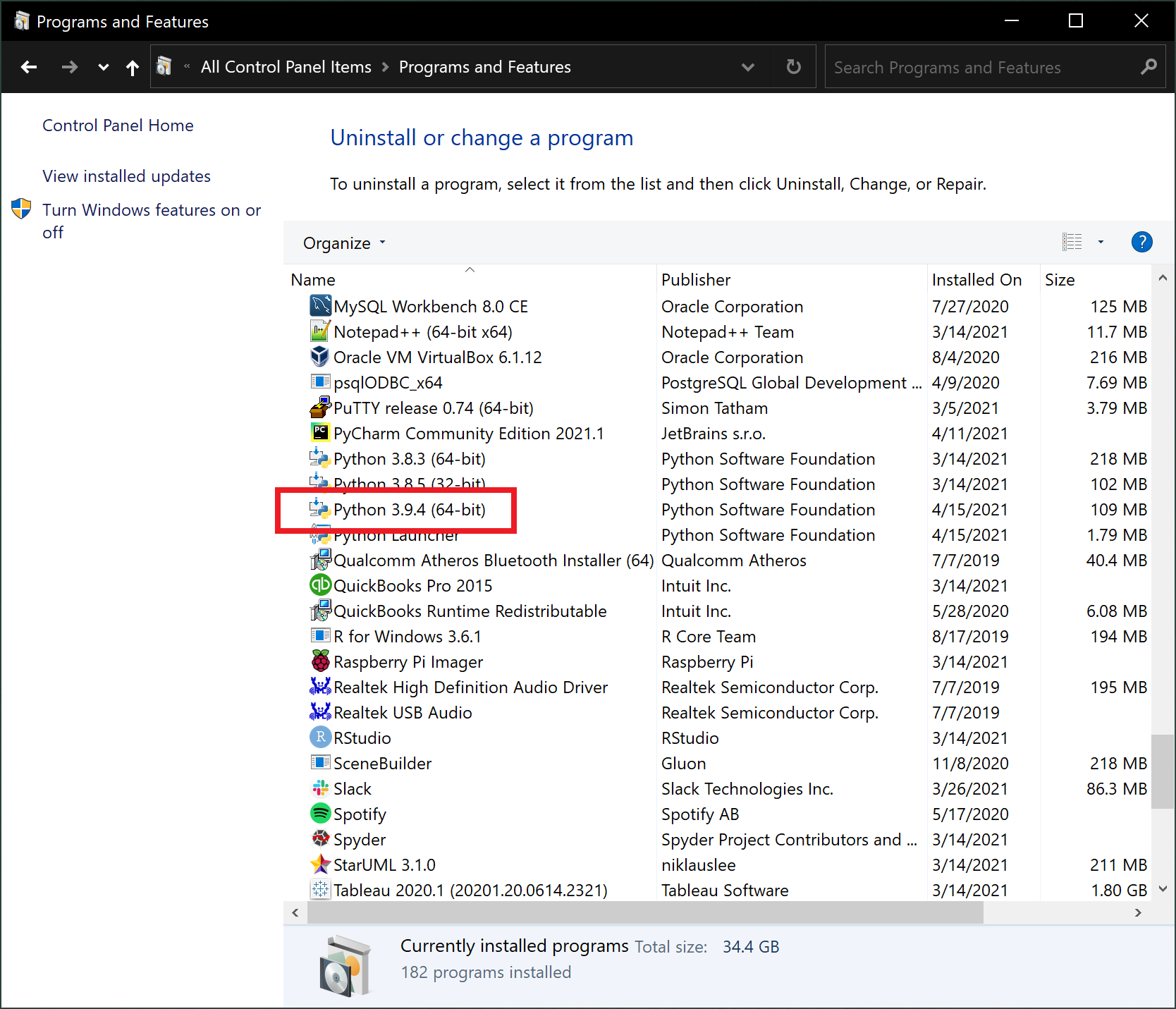
You can also confirm the installation by returning to the Control Panel and checking that Python 3.9 now appears in the Programs list:
×
Now I have Python 3.9 installed. Notice that it does not replace my original 3.8 version. I now have both 3.8 and 3.9 on my computer. I'll show you later how to use a particular version when we create a Python programming project.
Macintosh Installation Instructions
1. Open a Terminal Window. Using the keyboard press Command + Spacebar to open Spotlight and then Spotlight Search, type terminal and press Enter. In the GUI open Launchpad, then Other and double-click Terminal.
×
2. Enter the following command:
python --version
×
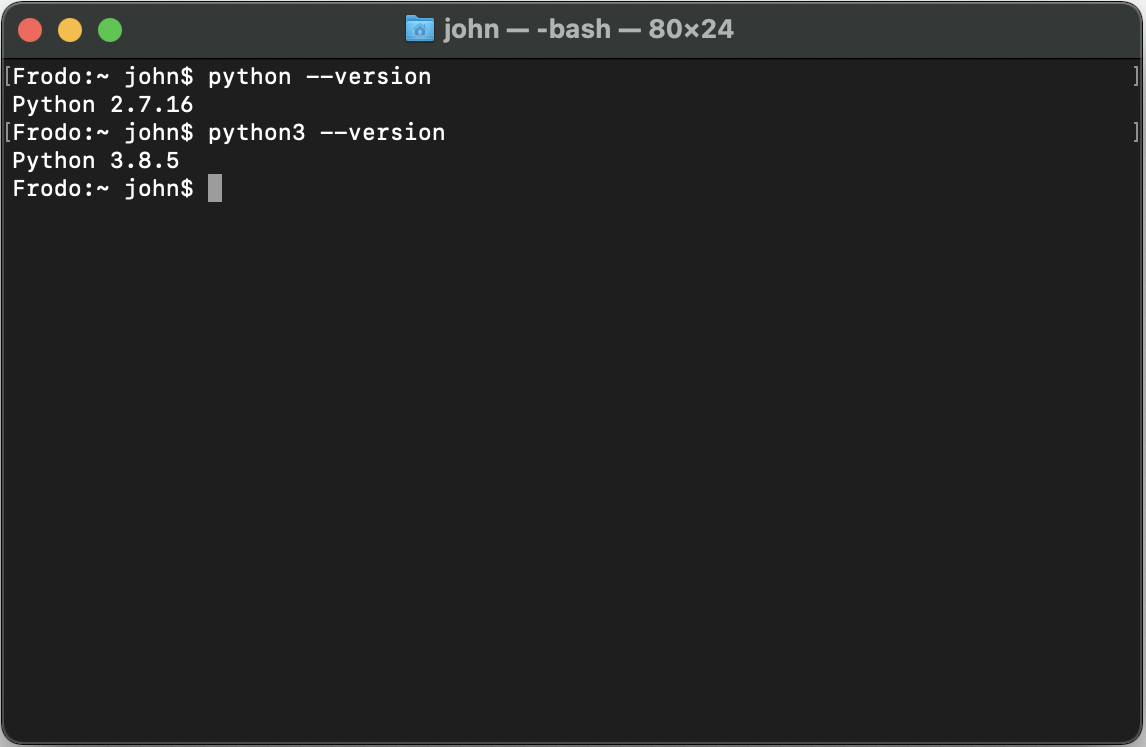
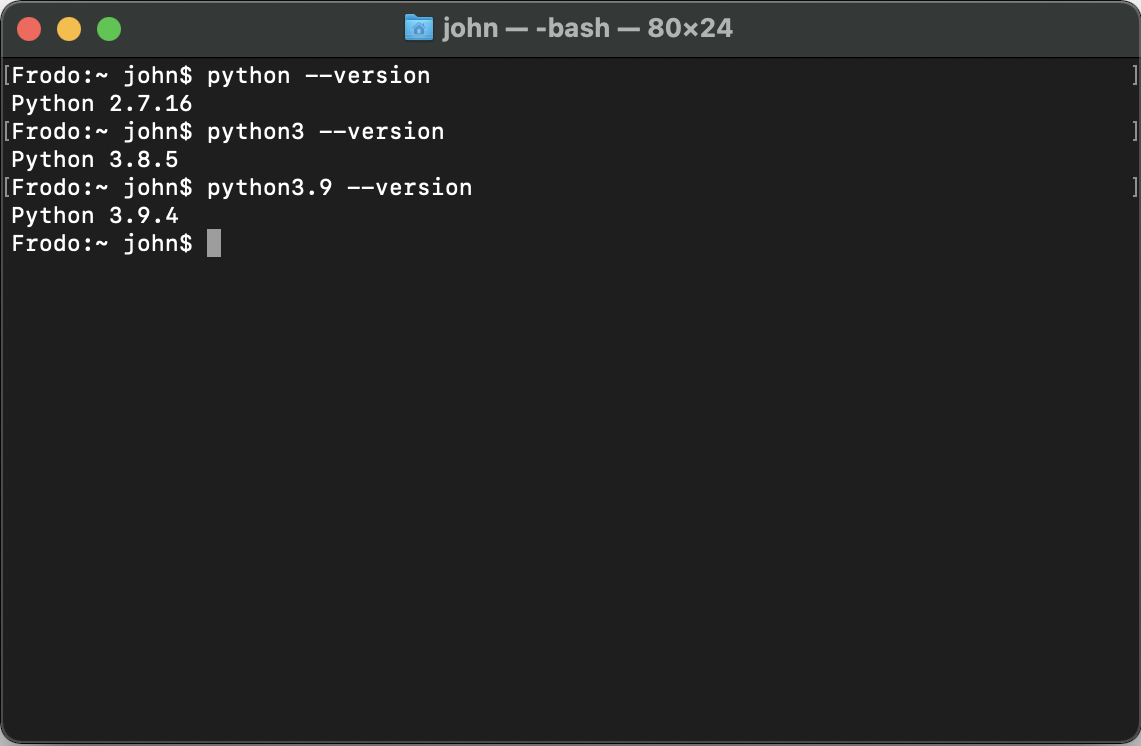
Notice in the screen above the command response shows that the version is 2.7.16. Python versions in the 2.x range are no longer supported. Also, all content in this book is designed to work with version 3.6 or higher. Many Mac computers have version 2.7 installed at the factory, but since it is possible to install multiple versions of Python on the same computer we should check for 3.x versions. So, enter the following command (notice the 3 on the end of python):
python3 --version
×
Using python3 indicates that I have Python version 3.8.5 also installed on this computer. This would work for our purposes, but let's go ahead and upgrade to the latest version, which as of the time of this writing is 3.9, so that you can see the install process.
The website automatically detects your operating system, so click the Download button. When the download finishes, you'll see the installer program appear at the bottom-left of your browser (if you're using Chrome)(indicated on the screen capture below with the red arrow). If you don't see it, you should be able to locate it in Finder in your Downloads folder.
×
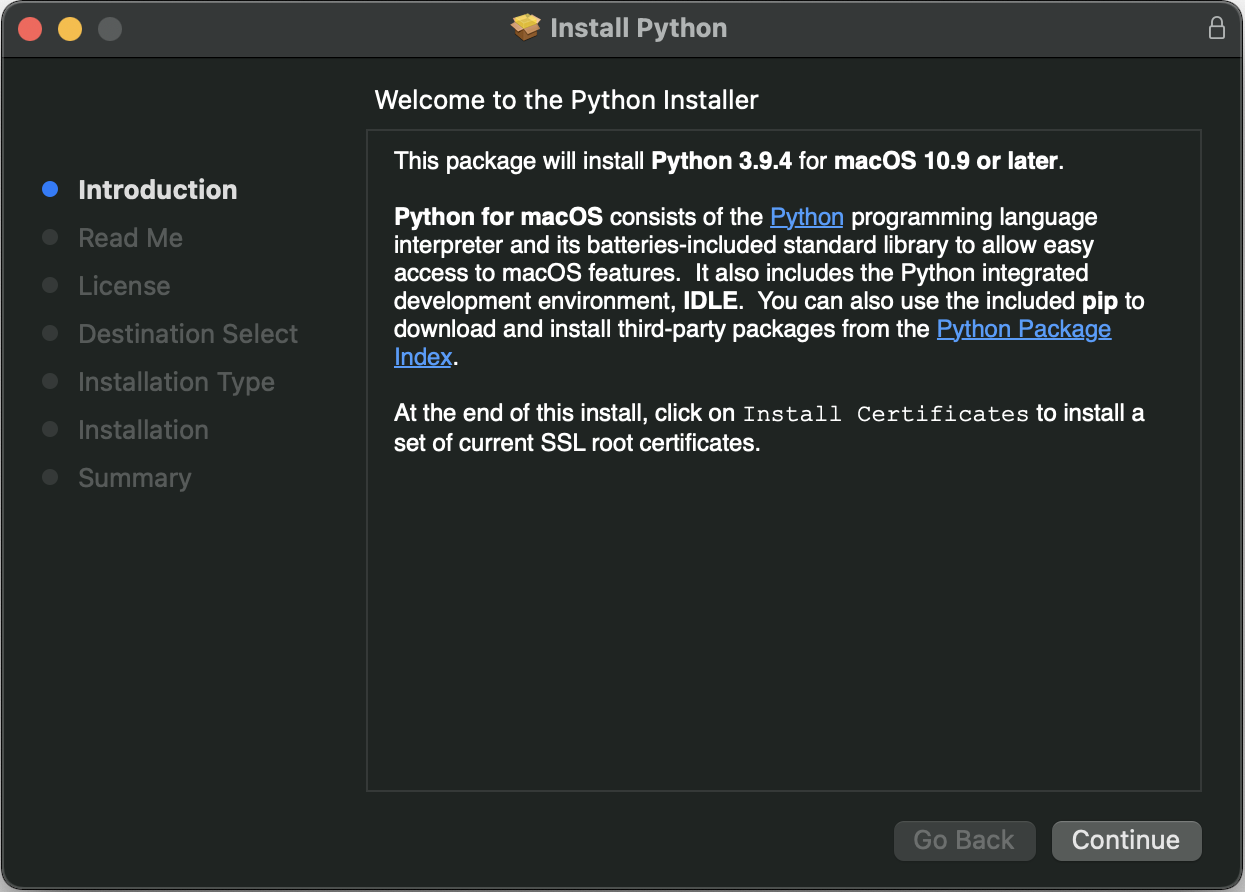
4. Next, run the installer. If you see the installer at the bottom left of your browser, double-click it. Or, navigate to your Downloads folder in Finder and double-click the installer there. The initial install screen will look like this:
×
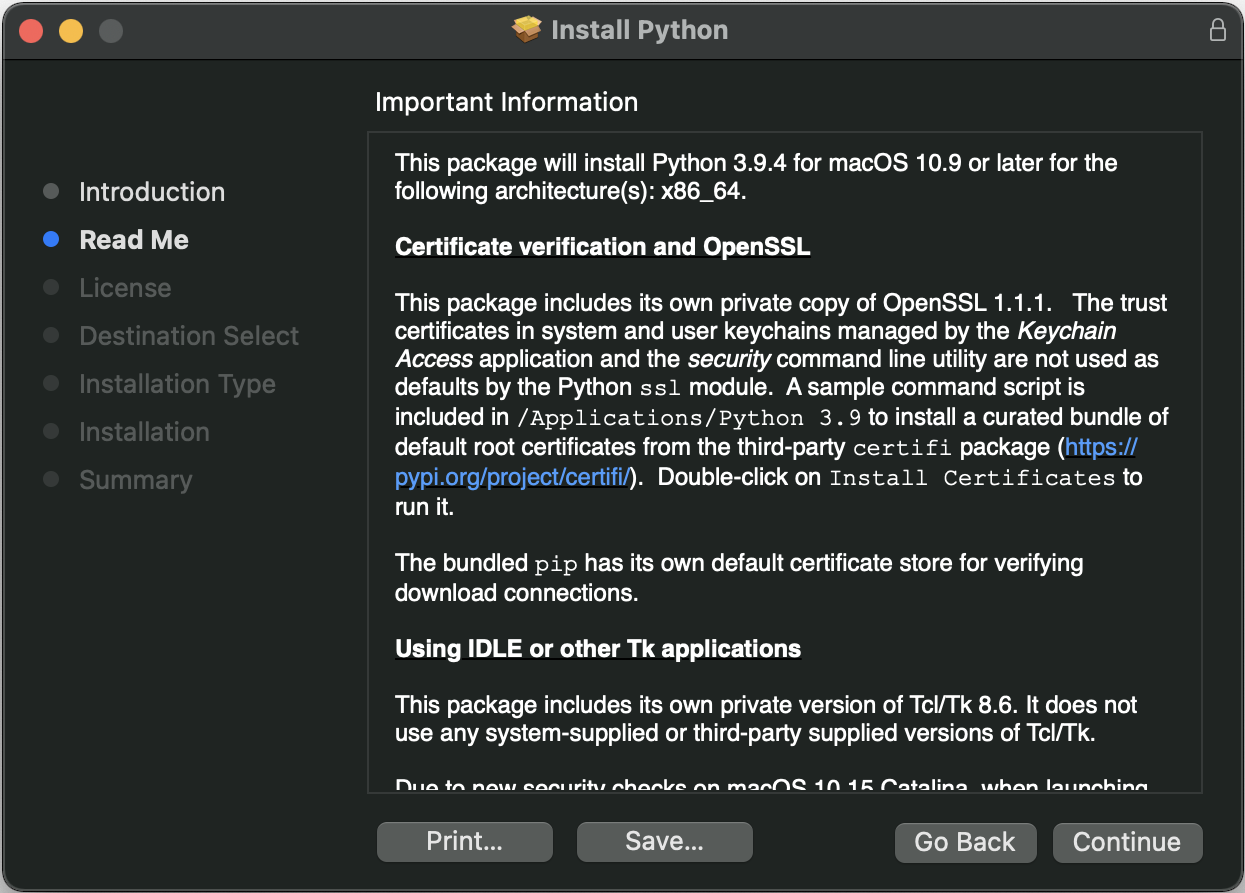
5. Click Continue.
×
6. Click Continue.
×
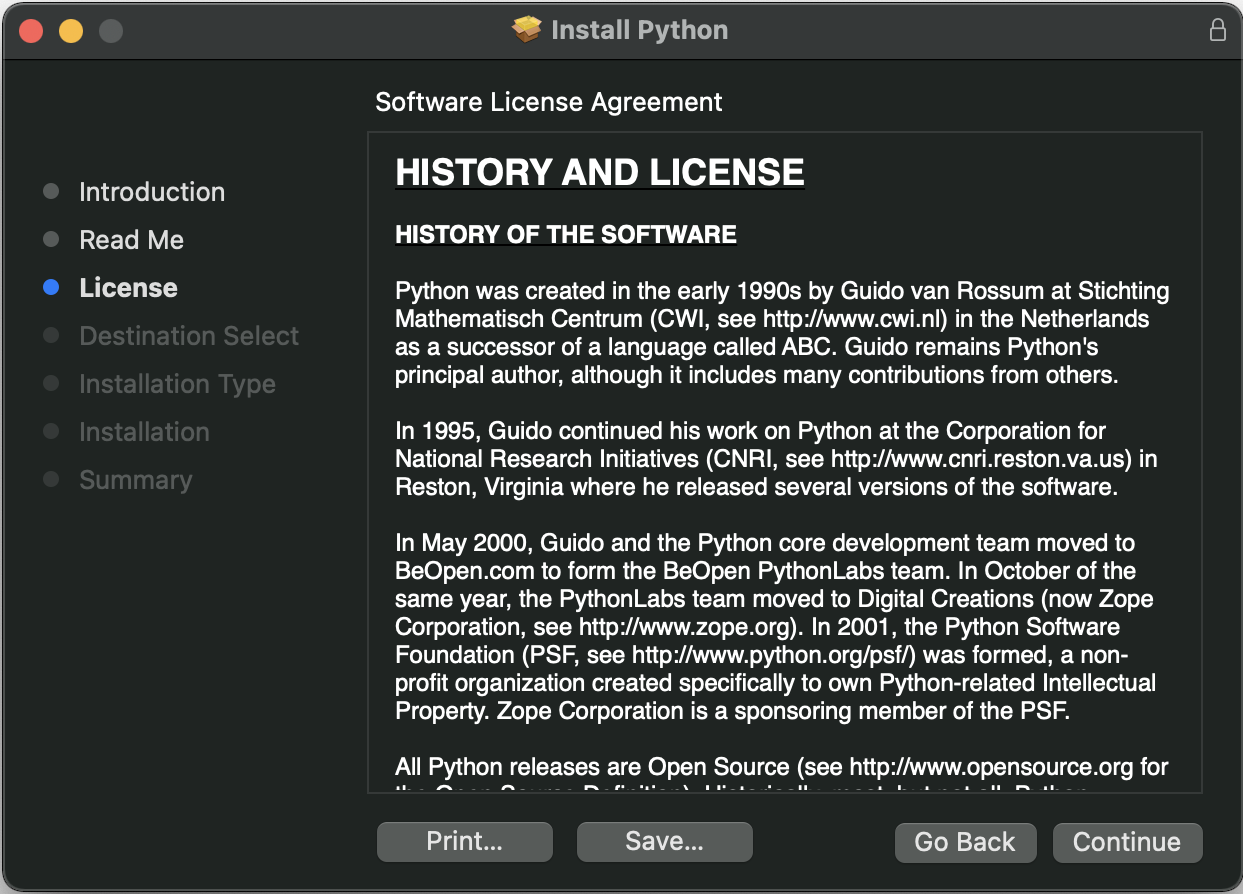
7. Click Continue.
×
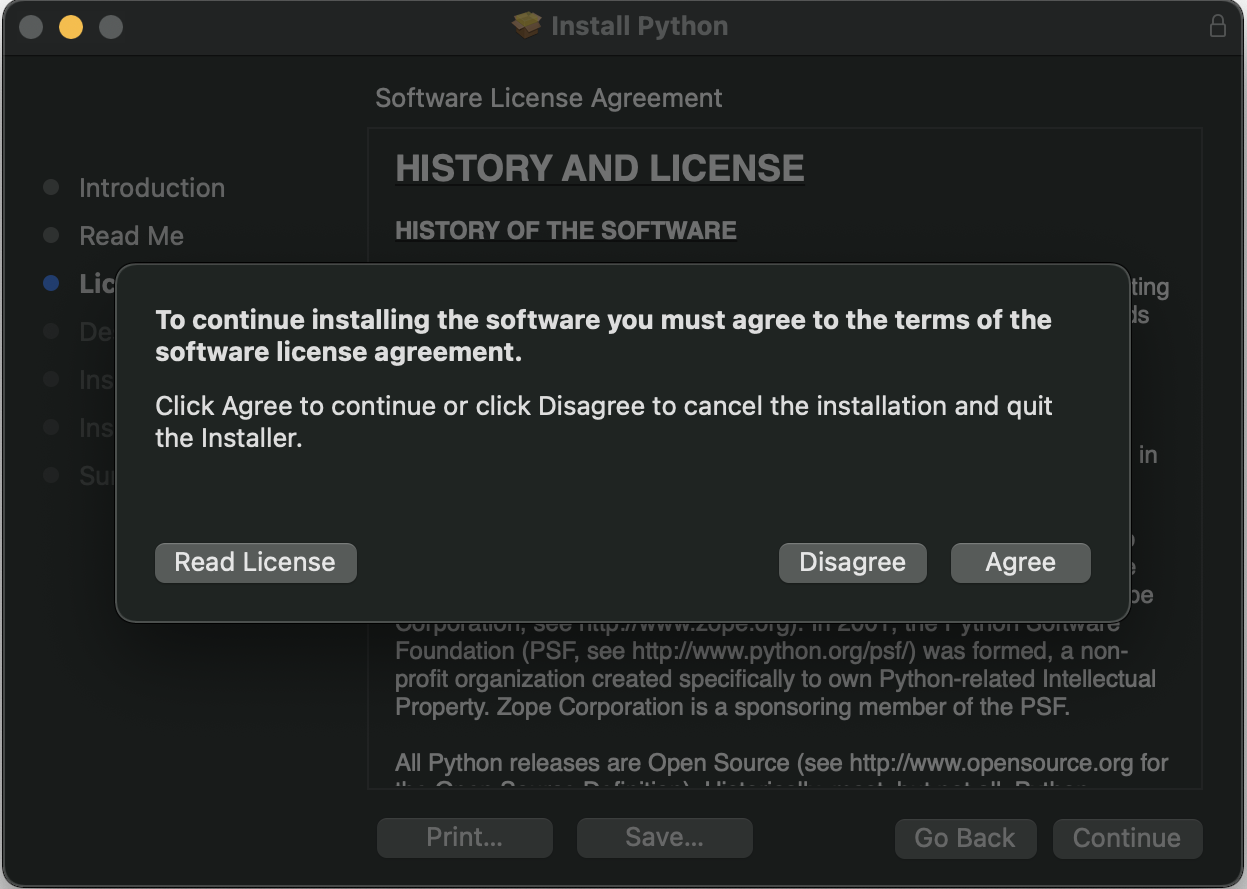
8. Click Agree.
×
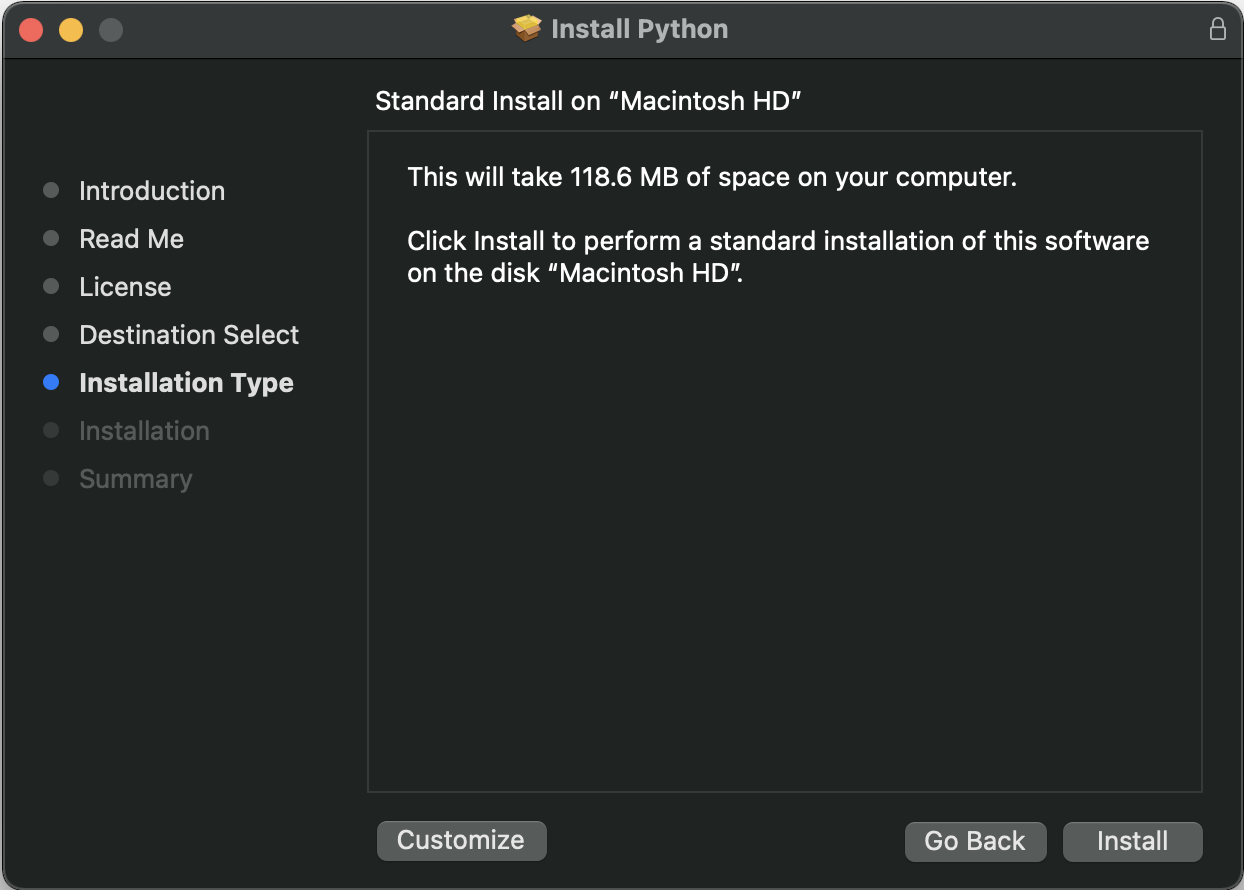
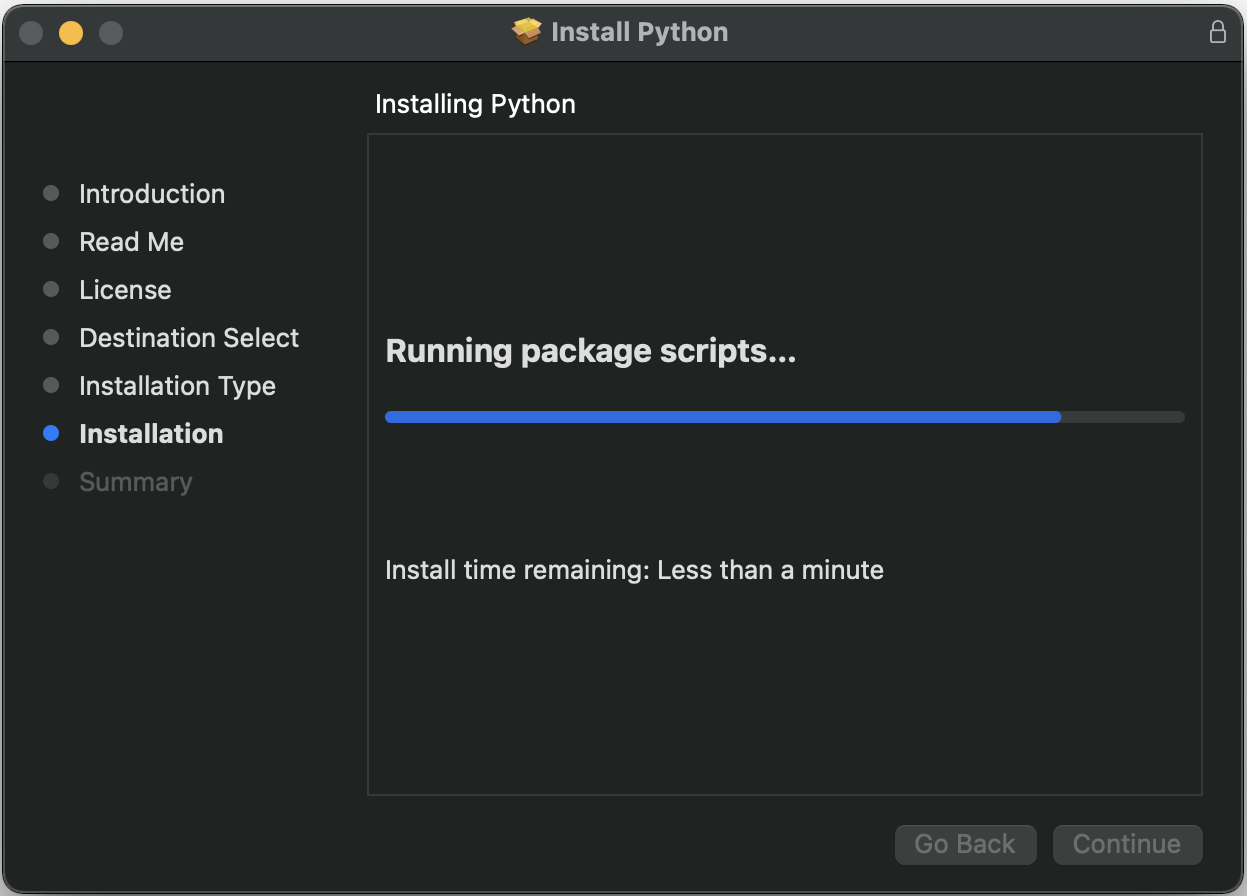
9. Click Install. The installation process will begin.
×
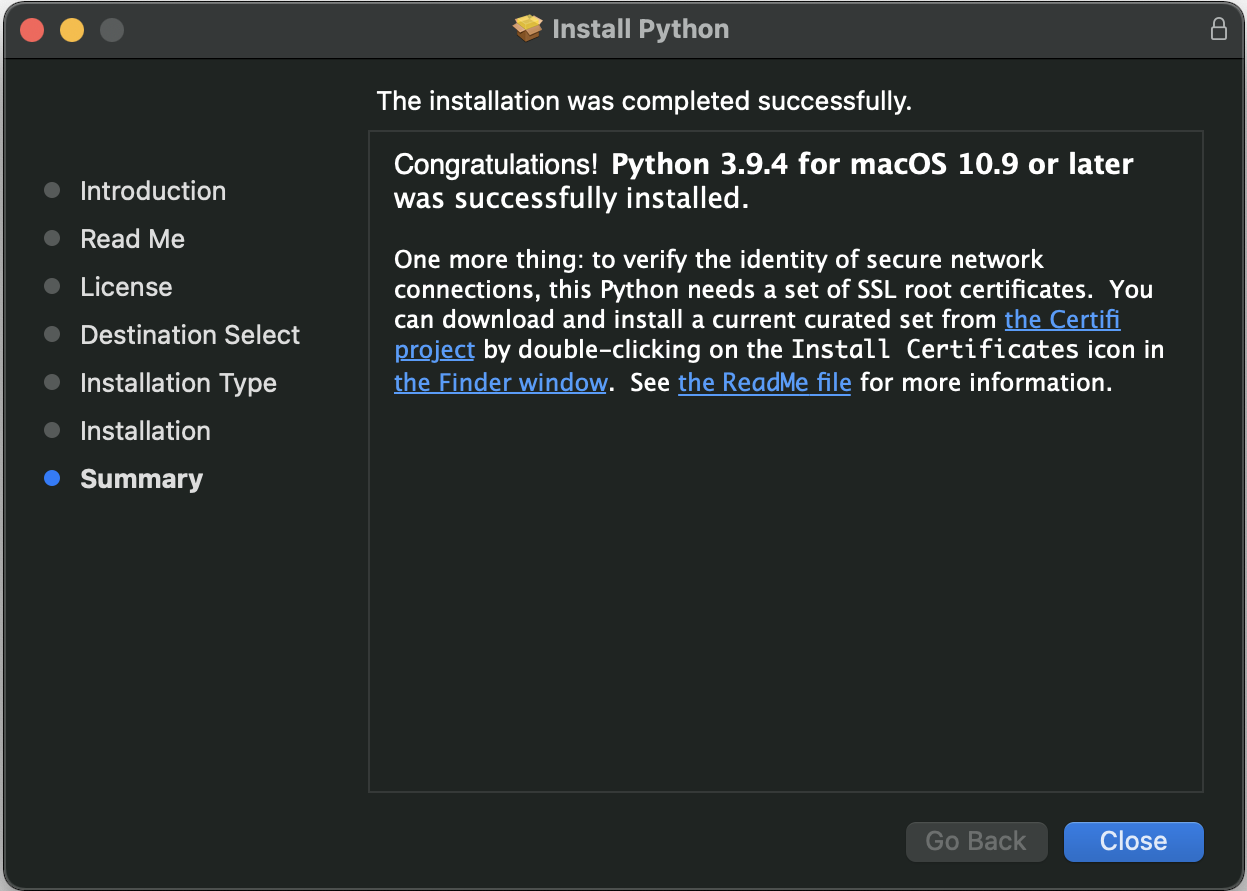
10. When the installation process completes, click Close.
×
11. Return to the Terminal and type the following command:
python3.9 --version
×
Now we see that we have version 3.9 installed. The other versions are still on the computer and unaffected by this new installation.
Linux Installation Instructions
1. In Linux open a Terminal Window. Using the keyboard press Ctrl+Alt+T, or use the GUI menu and locate Administration > Terminal, or right-click the desktop and select Open Terminal.
×
2. Enter the command:
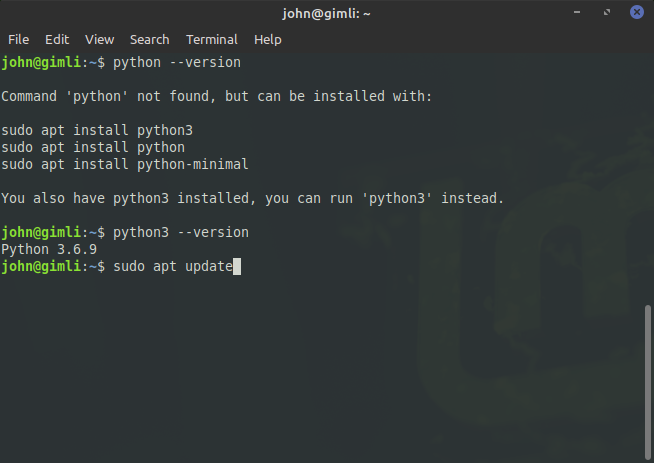
python --version
×
Notice in the screen above the response is that python is not found. It also indicates that python3 is installed, so if you see this, enter this command:
python3 --version
×
Using python3 indicates that I have Python version 3.6.9. This would work for our purposes, but let's go ahead and upgrade to the latest version, which as of the time of this writing is 3.9.
3. I'll use the Linux Advanced Package Tool (apt) to update my Linux system and install Python 3.9. First I'll run a general update to make sure I have all of the latest security and system updates:
sudo apt update
×
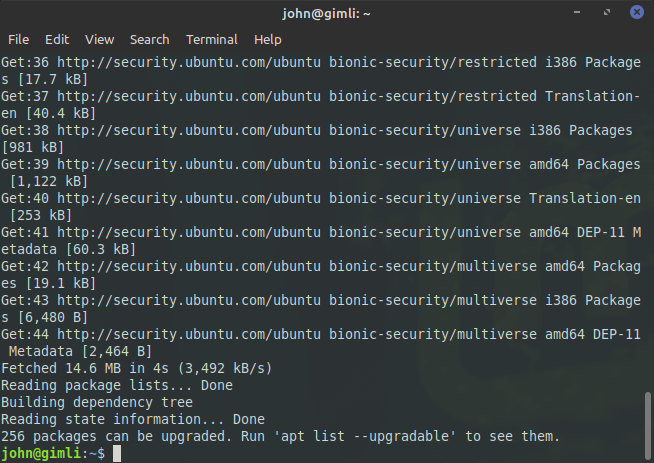
The update process will run and will report package update information:
×
Next, I will run the install command for Python 3.9. If you are installing some other version, besides 3.9, you'll need to modify the command to request the specific version you want to install.
sudo apt install python3.9
×
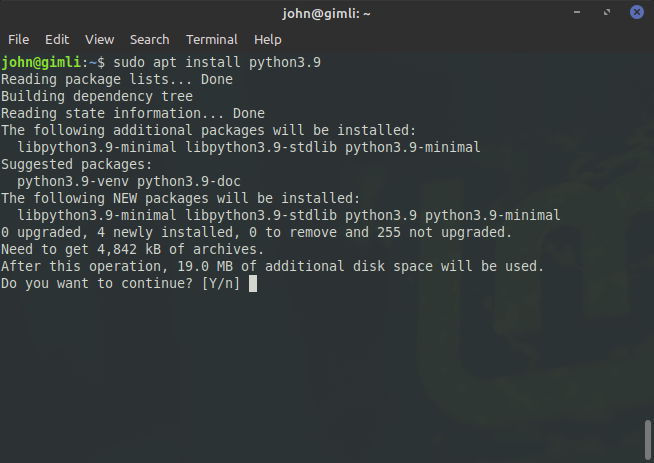
You may see a message regarding disk space and the Do you want to continue? [Y/n], like this:
×
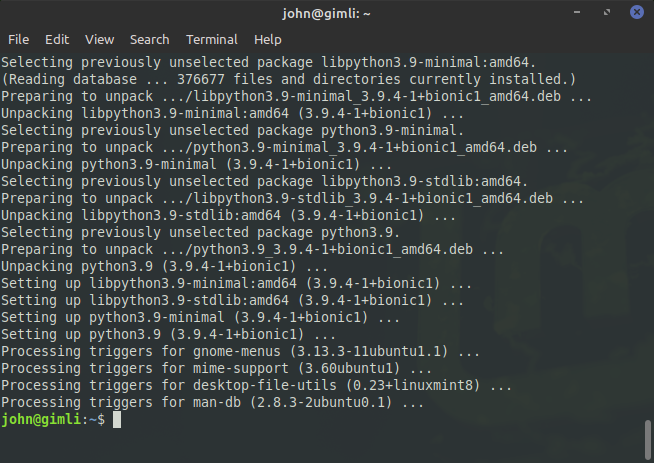
Answer yes (Y) and press Enter. The process will continue and finish:
×
Next, I'll confirm the installation by checking the version (notice the 3.9 on the end of python):
python3.9 --version
×
Notice now I have Python 3.9 installed. This does not replace my original 3.6 version, I now have both 3.6 and 3.9 on my computer. I'll show you later how to use a particular version when we create a Python programming project.
Final Notes:
Check whether Python is already installed before installing a new version.
Windows, macOS, and Linux may use different Python commands, such as python, python3, or a version-specific command.
It is possible to have multiple Python versions installed on the same computer.
After installation, confirm the installation from the command line.